How to use AjoQuest
From your first sign-up to your first withdrawal, step by step.
1. Create your account
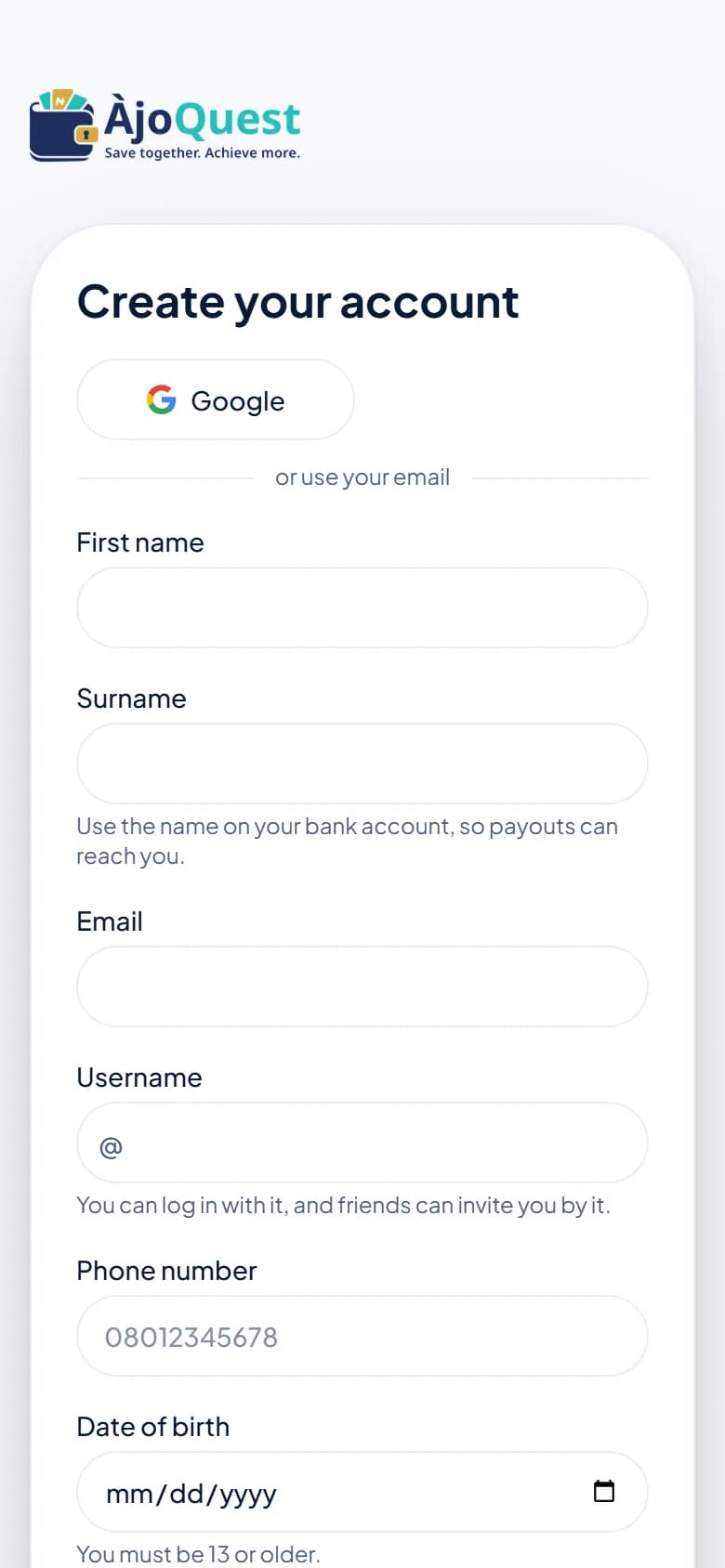
- Tap Create an account. Enter your first name, surname, email, a username, phone number, date of birth and a password. Friends use your username (@yourname) to invite you to plans and games. You can also sign up with Google or another social login where shown.
- We email you a 6-digit code. Type it in to confirm your email. Unconfirmed accounts are removed after 48 hours.
- Read and accept the terms and privacy notice.
- Set a 6-digit transaction PIN. You type it before money actions such as starting a plan or withdrawing, and it logs you in quickly on a device you have used before. Never share it.
- Under 18? Enter a parent or guardian's email. You can play games straight away; savings unlock once they approve the link we send them.
2. Log in
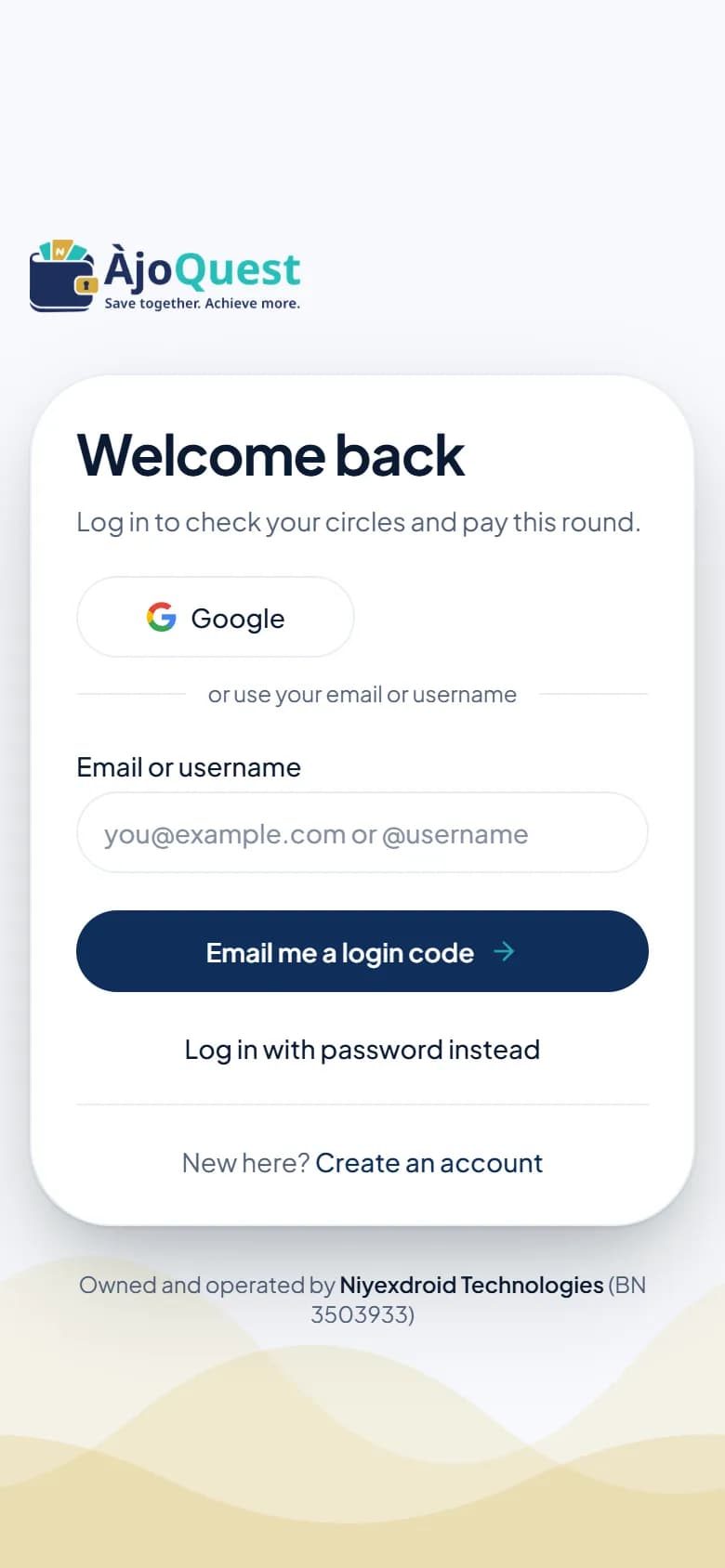
- On the login page, enter your email or username. We email you a login code, or you can use your password instead. On a phone or computer you have logged in on before, just type your 6-digit PIN.
- Forgot your password? Choose Forgot password and we email you a code to set a new one.
- For your safety we log you out after a while with no activity. Your Profile page lists every signed-in device, and you can log any of them out.
3. Verify your identity and add your bank
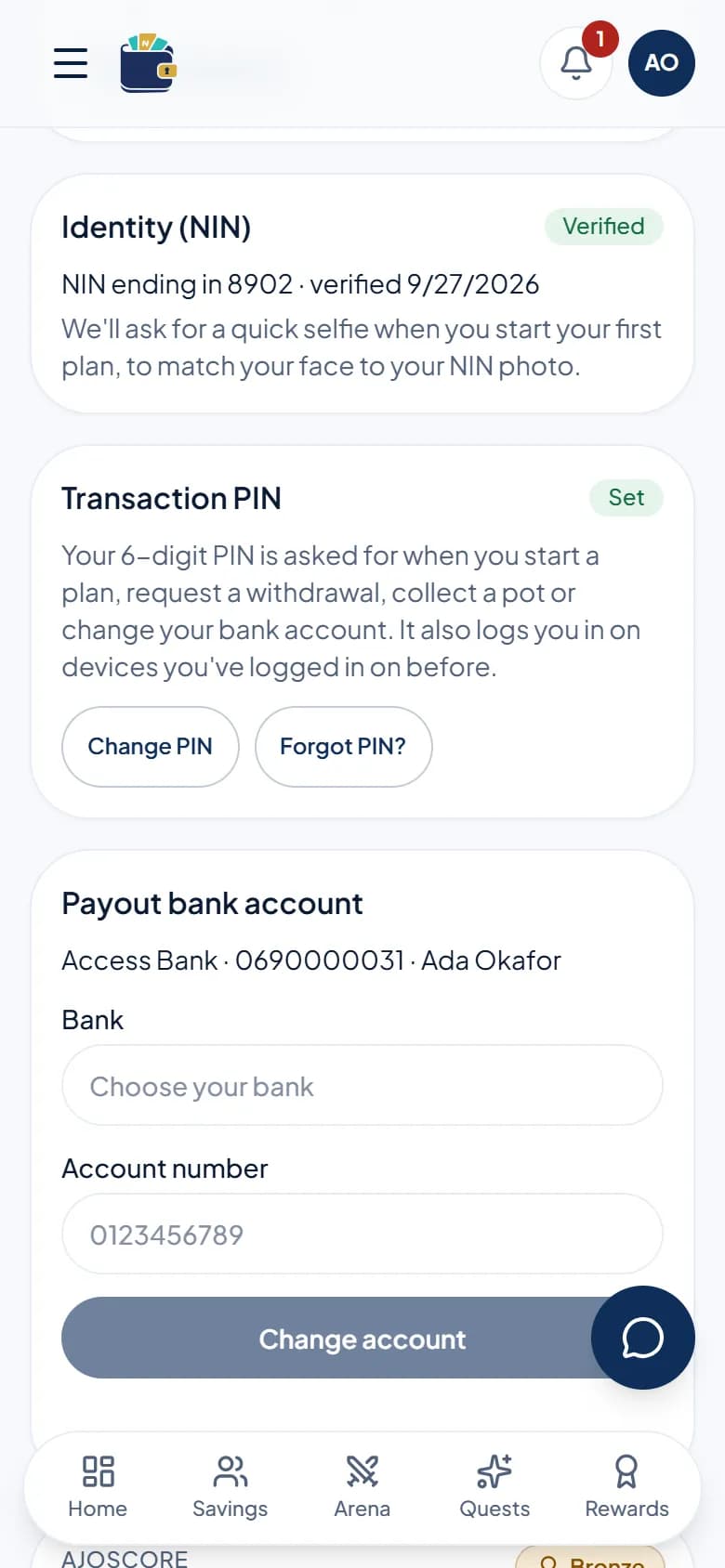
- Open Profile (tap your initials at the top, or the menu).
- Under Identity (NIN), enter your NIN. You only do this once.
- When you start your first plan, we ask for a quick selfie to match your face to your NIN photo. We ask again before each withdrawal or payout.
- Add your payout bank account. Withdrawals only go to this account, and the name must match your NIN.
4. Start a savings plan
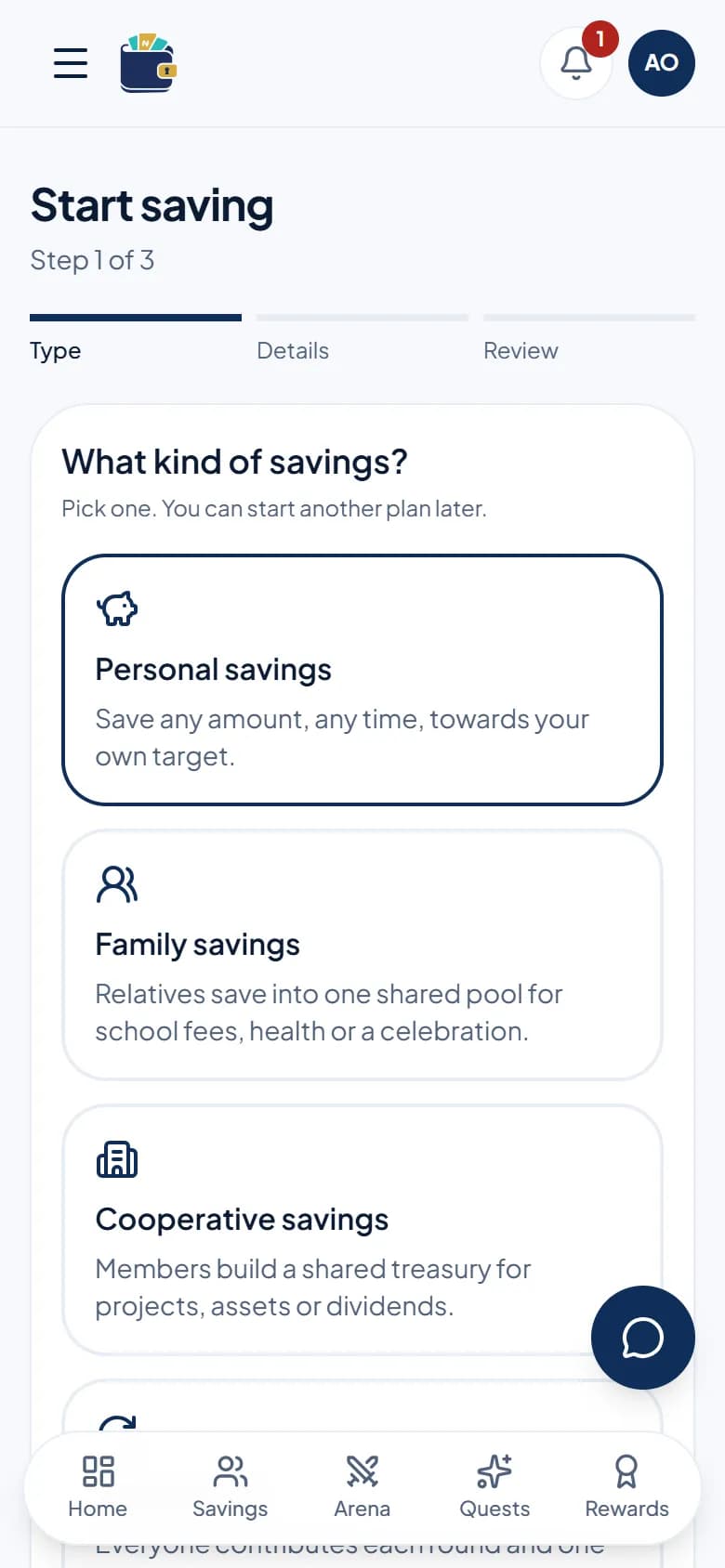
- Tap New plan (in the menu), or go to Savings and start one.
- Pick a type:
- Personal savings: save any amount, any time, towards your own target.
- Family savings: relatives save into one shared pool, for school fees, health or a celebration.
- Cooperative savings: members build a shared treasury for projects, assets or dividends.
- Rotating ajo: everyone pays the same amount each round and one member collects the whole pot, taking turns (esusu or adashe).
- Fill in the details. For savings plans: a name, a target amount (at least ₦1,000) and a target date. For a rotating ajo: the amount per member, how often, how many members and the first due date, then the payout order.
- Check the summary and tap Create. Enter your PIN and take the selfie when asked.
Your target date is a lock. You can still take money out before it, but that counts as an early withdrawal and has a fee, shown before you confirm.
5. Put money in
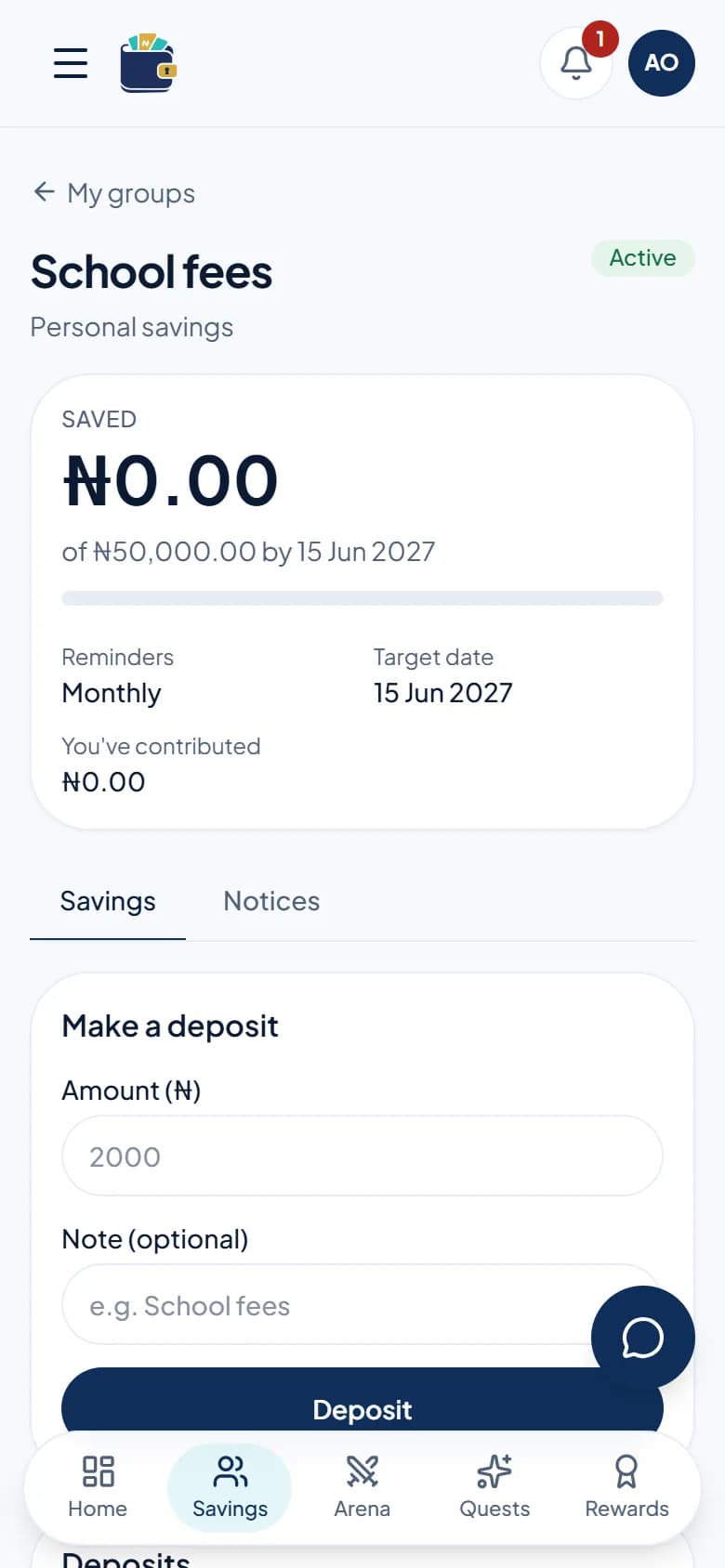
- Open your plan from Savings. Enter the amount and tap Deposit (savings plans) or Pay next to the round that is due (rotating ajo).
- We show a one-time account number. Copy it and transfer the exact amount from any bank app.
- Keep the window open. We check every 10 seconds and show "Payment received" once it lands. You also get a receipt.
- Sent a different amount, or it isn't showing? Open a support ticket (see step 11) with the time and amount.
6. Take money out
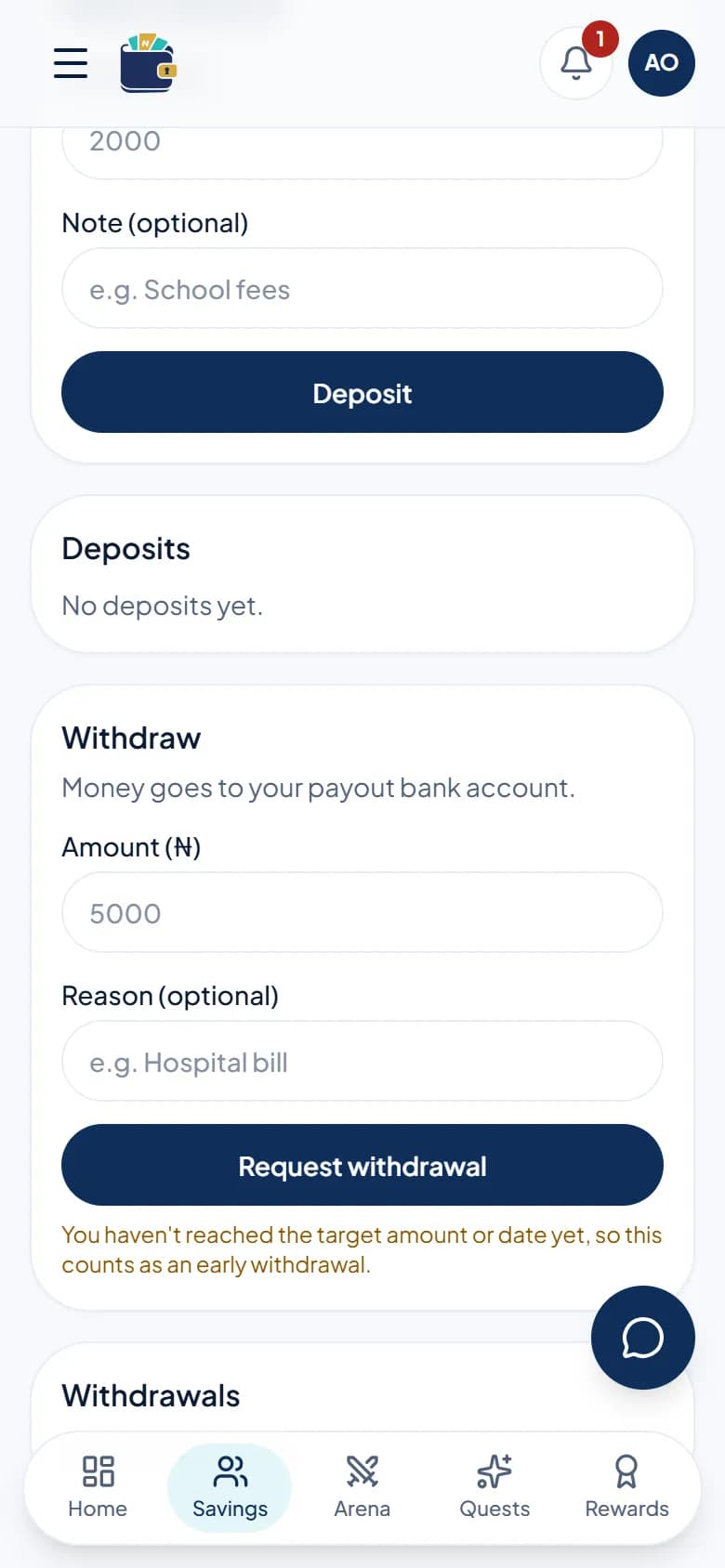
- Personal plan: open the plan, enter an amount under Withdraw and tap Request withdrawal. Enter your PIN and take the selfie. Money goes to your payout bank account, usually within minutes.
- Family plan: a withdrawal request goes to a members' vote for 72 hours. It passes when more than half of all members agree. Money goes to the plan's bank account, set by an officer.
- Cooperative: members do not vote. You withdraw your own savings with an officer's approval, and you can borrow with two officer approvals, with no interest.
- Rotating ajo: when it is your turn, a Collect pot button appears on the group page. Keep paying every round until the rotation ends, even after you have collected.
- Each fee (withdrawal, early break) is shown before you confirm.
7. Invite people or join a group
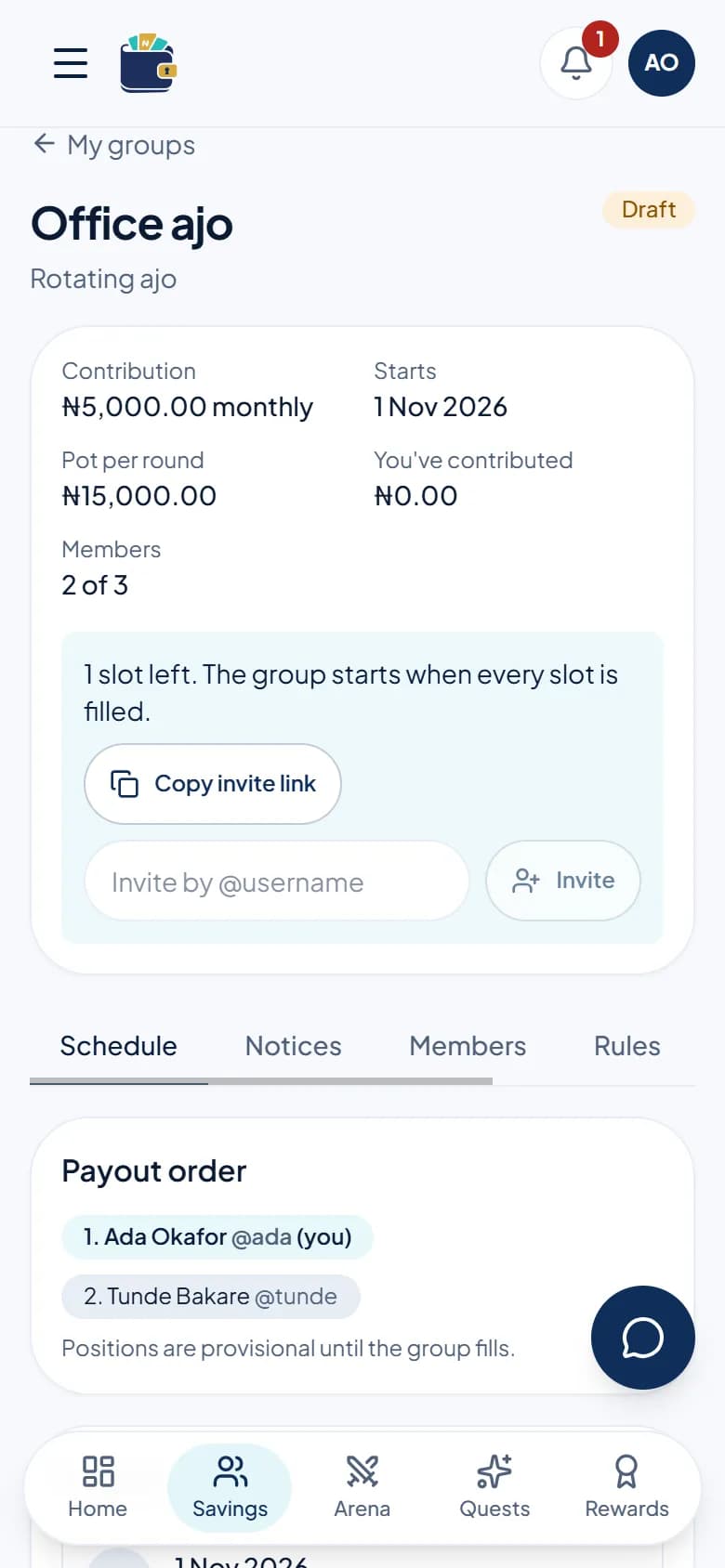
- Invite: on your group page, tap Copy invite link and send it on WhatsApp, or type someone's @username and tap Invite.
- Join: open the invite link, or accept the invite shown on your Home page, then tap Join. Some groups need the organizer to approve you first.
- Inside a group, the tabs show the schedule, notices, members, the group rules (agree to them before you can withdraw), officer roles and an activity log of everything that happened.
- Your AjoScore (300 to 850) goes up when you pay on time and down when you miss. Groups can see your tier before they let you in.
8. Play quests and earn points
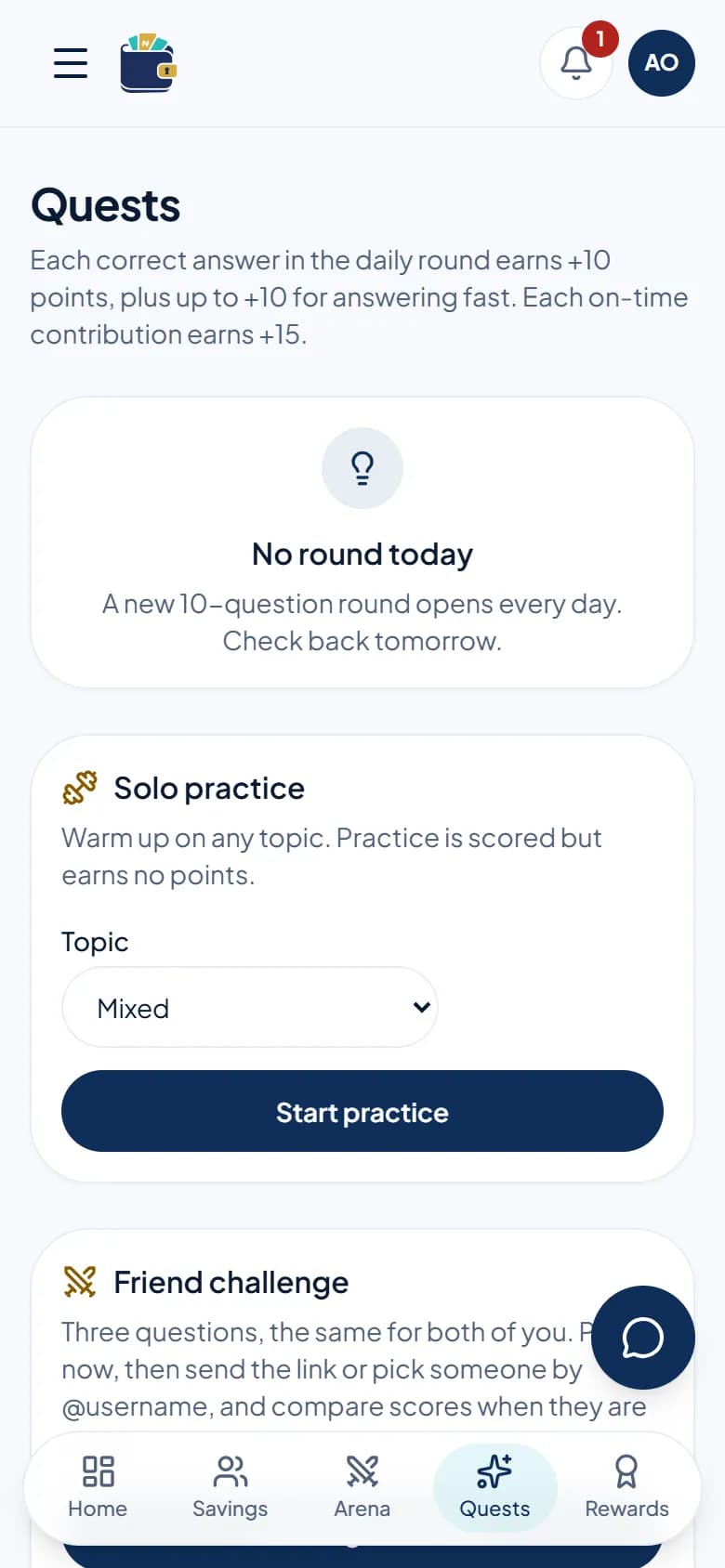
- Open Quests. Play the daily round: each correct answer earns +10 points, plus up to +10 for answering fast.
- Practice on any topic you like. It is scored but earns no points.
- Challenge a friend: send a duel, you both answer the same questions, best score wins.
- Each on-time contribution to a plan also earns +15 points.
- Points pay off part of your platform fees automatically, so active players pay less. You never stake money to play.
9. Play the live arena
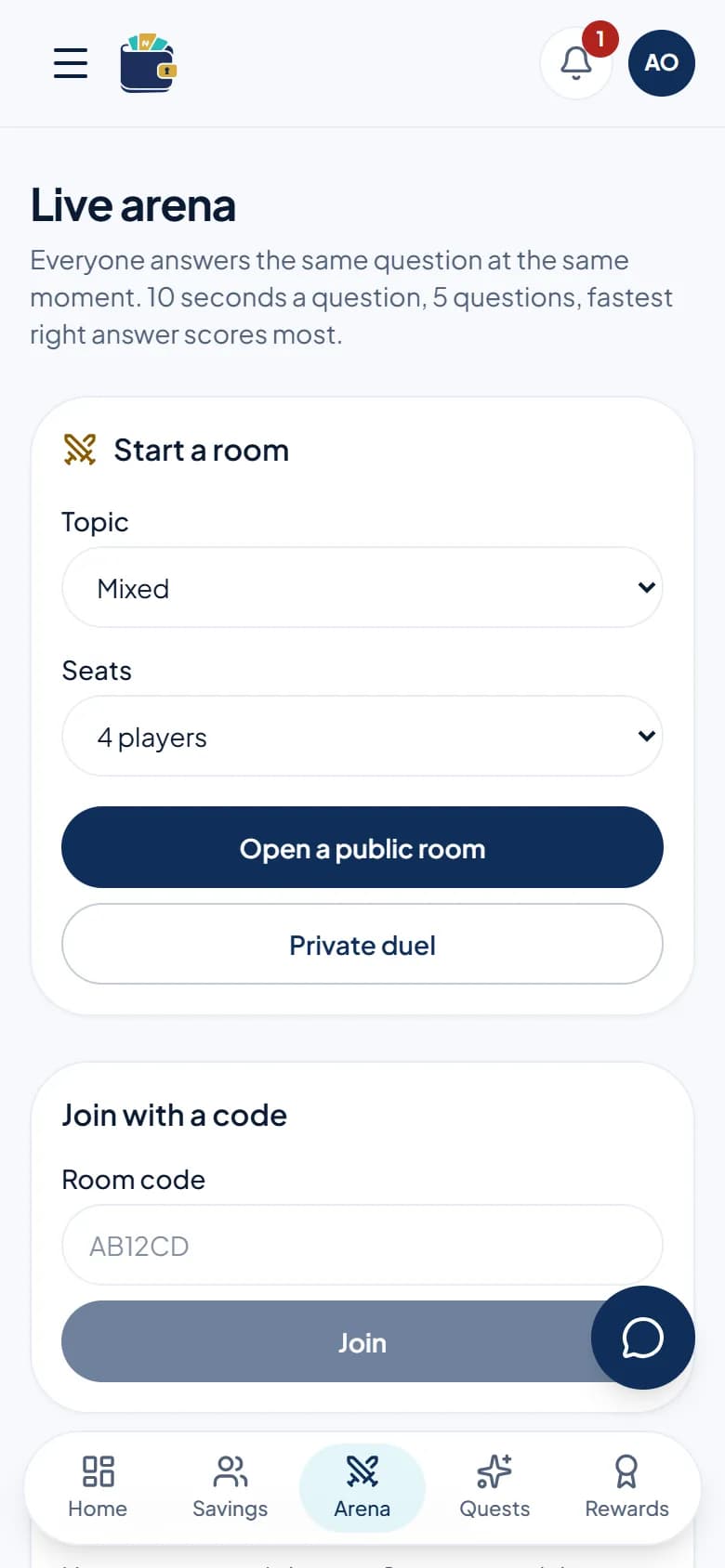
- Open Arena. Everyone in a room answers the same question at the same moment: 5 questions, 10 seconds each, fastest right answer scores most.
- Join an open room, start your own (pick a topic or type your own), or type a room code a friend sent you.
- You can invite people who are online straight from the room. They get a notification.
10. Rewards, badges and campaigns
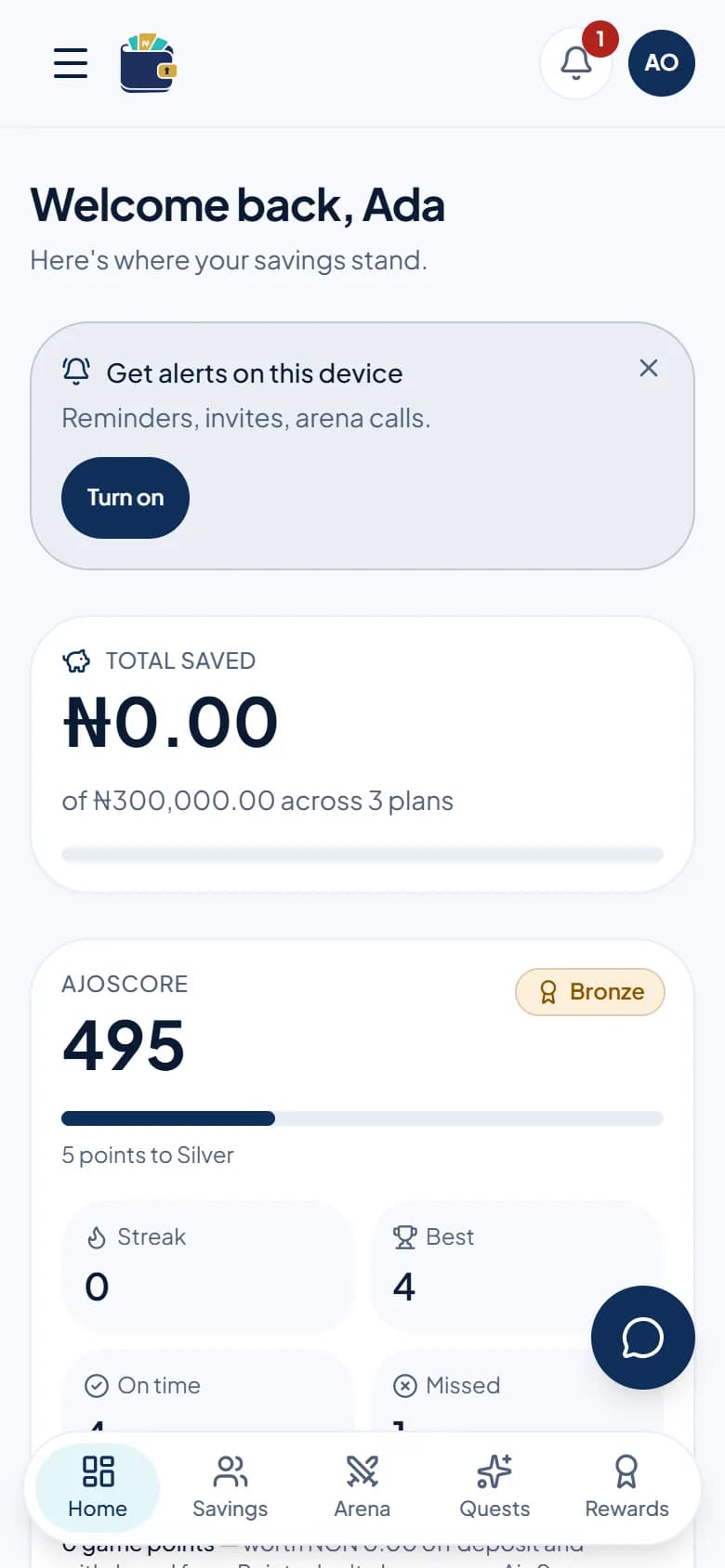
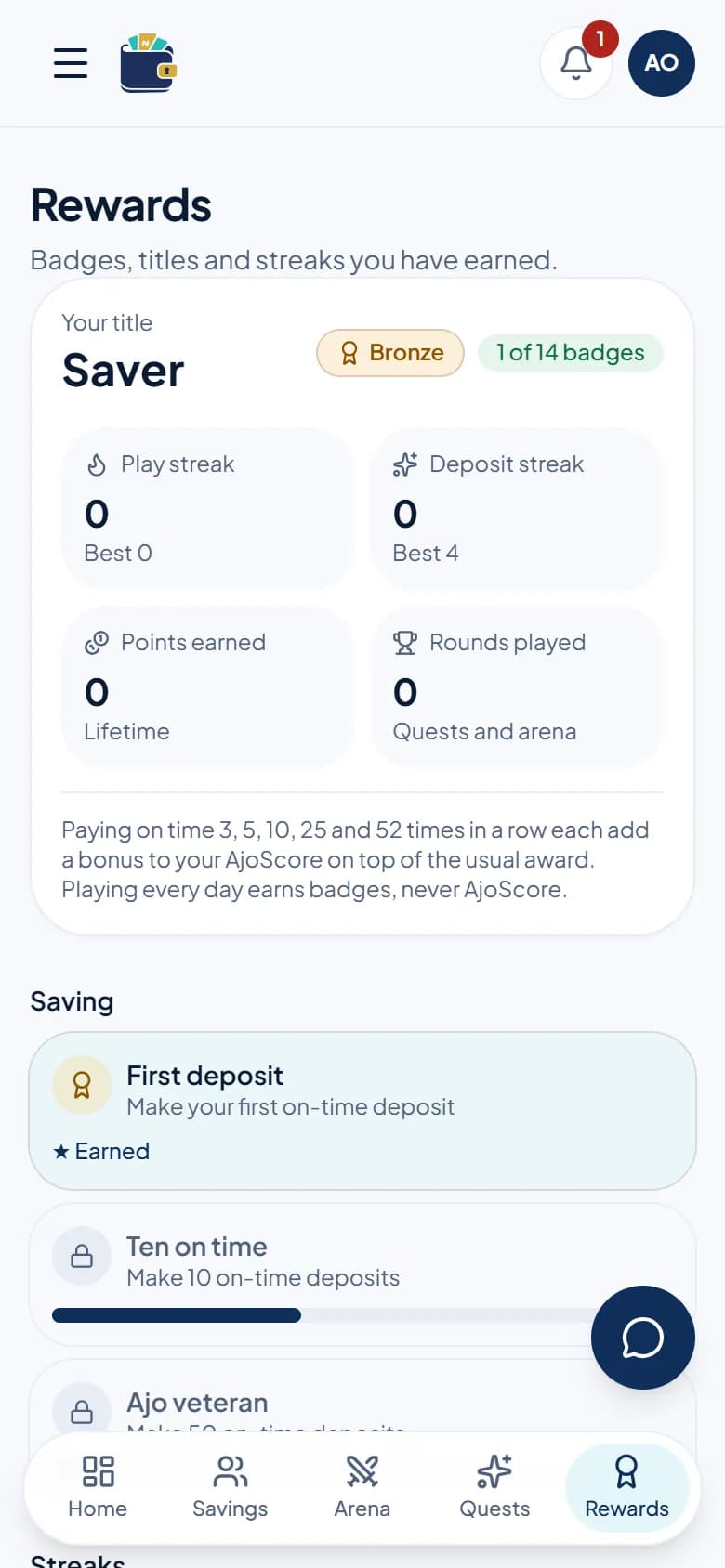
- Rewards shows your badges, title, play and deposit streaks, and your AjoScore tier. Share your player card with friends.
- Campaigns (in the menu) let you raise money from anyone, with or without an AjoQuest account. We check every campaign before it goes live; see the campaign terms for the fee.
11. Get help
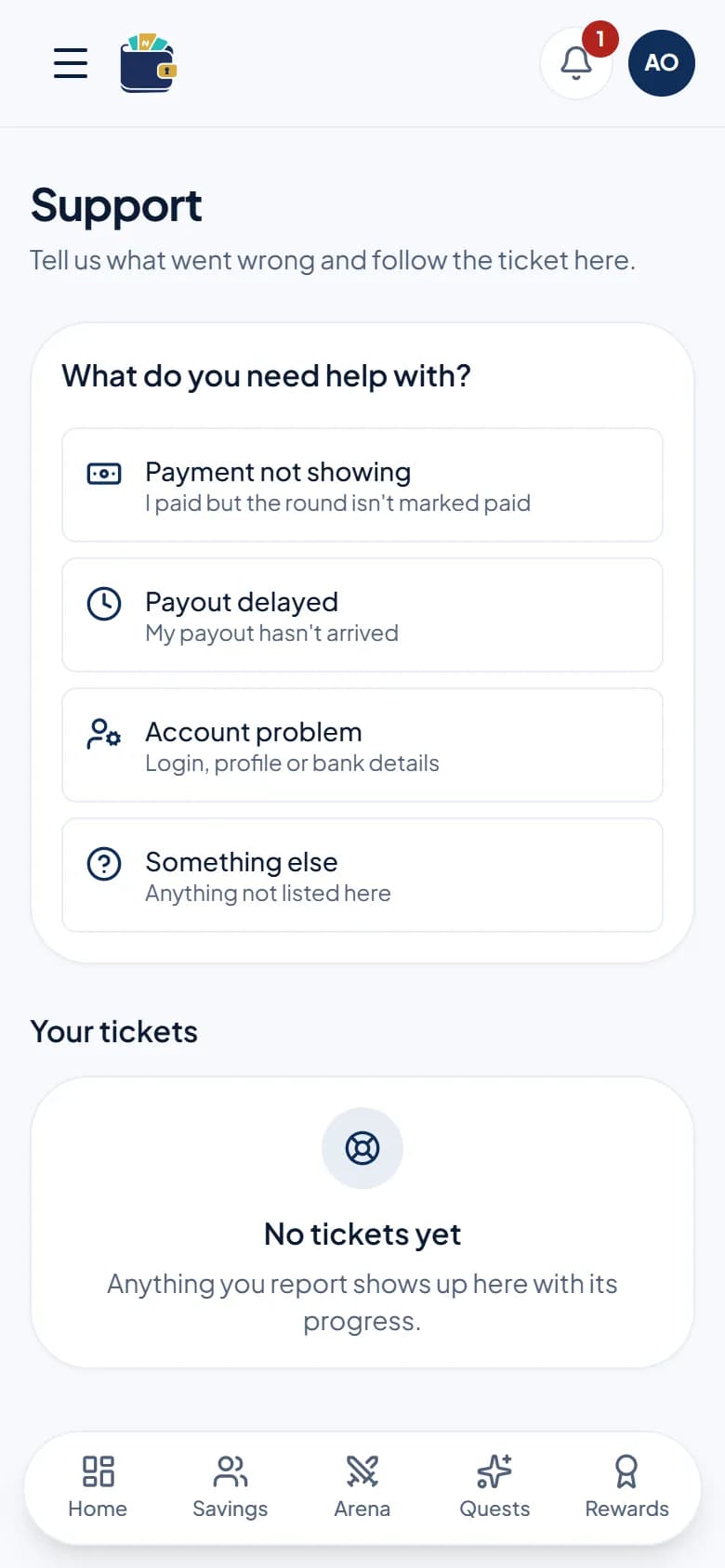
- Tap the round chat button (phone) or Support (menu), choose what went wrong, describe it with any amounts or references, and tap Submit ticket. Replies show on the same page.
- You can also reach us on the contact page.
- Nobody from AjoQuest will ever ask for your password, PIN, login code or BVN.
Tips for your phone
- The bar at the bottom has Home, Savings, Arena, Quests and Rewards. Everything else (Profile, Support, Campaigns, New plan and this guide) is in the menu at the top left.
- Turn on notifications from the bell or your Profile page to hear about invites, due payments and votes.
- Add AjoQuest to your home screen from your browser menu ("Add to Home screen") to open it like an app.
- Prefer dark mode? Switch the theme in the menu.